Create an Object
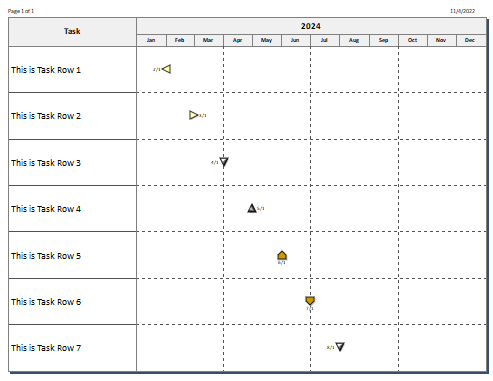
The Visual Basic example below shows the creation of a Milestones Professional schedule.
|
Public Sub createanobject() objmilestones = CreateObject("Milestones") With objMilestones .Activate For nCounter = 1 To 7 strTemp = "This is Task Row " + CStr(nCounter) .PutCell(nCounter, 1, strTemp) strTemp = CStr(nCounter + 1) + "/1/2024" .AddSymbol(nCounter, strTemp, nCounter) Next nCounter .SetStartAndEndDates("01/01/2024","12/31/2024") .setlinesperpage("7") .Refresh
.Close End With
|
The result should look something like this (symbols may vary, depending on the user's default template)
Related Topics
- Example 1 - Create, Print, Save a File
- Example 10 - OLE Automation Feature Demonstration
- Example 11 - Build a schedule hierarchy and publish
- Example 12 - Symbol Notes
- Example 13 - A Sampler
- Example 14 - Outlined schedule with graph
- Example 15 - DataGraph and ValueSet Sampler
- Example 2 - Opening and Printing an Existing File
- Example 3 - Creating and Saving Under a New File Name
- Example 4 - Adding Rows and Symbols Using a Counter
- Example 5 - Freeform Text Sampler
- Example 6 - Build an outlined schedule from an Excel spreadsheet
- Example 7 - Using the AddTaskUsingDuration Call
- Example 8 - Creating JPG Bitmaps
- Example 9 - Microsoft Access Graphic File Generation